Wednesday, April 24, 2019

New tool - Hypsometric Integral Toolbox for ArcGIS

Adriano Matos and I have put together a new tool for calculating hypsometric integral for ArcMap users. The new tool is called the Hypsometric Integral Toolbox for ArcGIS and is available by clicking HERE. You can also download this tool by clicking on our lab's tools download page HERE.

The hypsometric integral (HI) is one of the most commonly used measures that geomorphologists use to describe the shape of the Earth’s surface.  A hypsometric integral is usually calculated by plotting the cumulative height and the cumulative area under that height for individual watersheds and then taking the area under that curve to get the hypsometric integral.  In a GIS hypsometric integral is calculated by slicing watersheds into elevation bands and plotting the cumulative area for each band. Due to the iterative nature that is required for calculating hypsometric integral it tends to be one of the harder to calculate watershed variables, and thus the need for an automated tool. Although there are instructions online for how to calculate HI in ArcGIS this tool automates the processes and doesn’t require users to do their own plotting or export results to spreadsheets.

This toolbox contains two models.  Hypsometric Integral (for shapefiles only) is the main model that most users will want to run.  Hypsometric Integral (submodel) is a model that is nested within the Hypsometric Integral (for shapefiles only) model and doesn’t need to be run by itself. The tool computes the hypsometric integral for a given watershed. A new shapefile will be created representing the same watershed the user inputs, but includes a new field, "HI," representing hypsometric integral percentages.

In some instances the Hypsometric Integral (for shapefiles) will show up with a red X and won’t be useable.  The workaround for this is to open the Hypsometric Integral (for shapefiles) tool in edit mode (ModelBuilder) delete the Hypsometric Integral (submodel) and drag in your version of the Hypsometric Integral (submodel). Re-connect the following parameters: input DEM, Input Watershed, TempWorkspace, and then connect the output (HI Values for all Watersheds) to the Append tool.  Click save.


In the example map above on the left we have 19 sample watersheds from central Nevada with a Digital Elevation Model. The map above on the right shows the hypsometric integral for each of the watersheds. As you can see smaller more "canyon-like" watersheds have higher values of HI compared to the more open watersheds.

Wednesday, February 27, 2019

how to increase the number of unique values in ArcMap raster tables

Recently I've been encountering problems where some geoprocessing tools in ArcGIS have failed to run due to requiring too many values in the attribute table.  I came across this interesting article that I thought that I'd share.  The most interesting aspect of this is that it doesn't only pertain to viewing rasters as the summary might imply.  It is actually a critical step for getting certain tools to run.  The Combine tool in Spatial Analyst is just one tool that can benefit from increasing the number of allowed unique values.  https://support.esri.com/en/technical-article/000010117

Wednesday, January 30, 2019

Anna Knight wins AGU Outstanding Student Presentation Award


Congratulations Anna Knight on winning Outstanding Student Presentation at the 2018 American Geophysical Union Meeting for her poster “Geomorphic and disturbance controls on vegetation dynamics in Great Basin riparian ecosystems “. Click HERE to view Anna’s poster. You can read more about AGU’s Outstanding Student Presentation by clicking HERE.

AGU is a huge conference with thousands of students attending.  Anna's award is a testament to her hard work and innovative cutting-edge techniques.  Anna is completing her master's thesis under the advisement of Dr. Peter Weisberg.  You can view her webpage by clicking HERE.


Wednesday, December 19, 2018

New paper by Sam Flake and Peter Weisberg

Congratulations Sam Flake and Peter Weisberg on their new paper "Fine‐scale stand structure mediates drought‐induced tree mortality in pinyon–juniper woodlands" published this week in Ecological Applications.  You can view their interesting and excellent paper HERE.

Wednesday, December 5, 2018

Miscellaneous Hydrology Tools for ArcGIS - Find Longest Stream Path

Here is part four of the blog post on the Miscellaneous Hydrology Tools for ArcGIS. This post covers a tool called the Find Longest Stream Path tool. You can read the original blog post by clicking HERE or download the tool be clicking HERE. It is the fourth and final in this series about the Miscellaneous Hydrology Tools.

Surprisingly, there are no conventional tools in ArcMap that identify the longest stream in a watershed. However, many geomorphic metrics, such as relief ratio and watershed shape, are based on knowing what the longest stream is. In order rectify this situation I built a small model that calculates the longest stream. Unlike the other two tools in the Miscellaneous Hydrology Toolbox it does not provide an absolute answer.  For reasons unknown to me occasionally some watersheds get left out.  Nonetheless I feel that this tool is a useful and helpful addition that some people will enjoy having in their toolbox.

On the left is a sample of watersheds from central Nevada with the longest stream from each watershed shown in bold blue.  All streams are shown in light blue.  Watershed boundaries are in black. Pour points (those places where the stream exits the basin) are shown in green. Channel heads for the longest stream are shown in yellow.

There are four parameters for running this tool.  A input flow stream flow direction tool is required for understanding flow routing.  A standard flow direction raster can be clipped to the stream network to achieve this.  Input watershed polygons are required.  A temporary folder is required for storing outputs.  Finally, a dissolve field (ID for example) is required.  This should coincide with a field with the same name in the watersheds file.

On the right is a picture of the model.  Let me step you through how it works. For each stream flow direction cell the model calculates an upstream and downstream flow length. Using those flow lengths the model generates channel heads and pour points in each watershed. Using cost distance the model identifies the channel head with the greatest cost distance from the pour point. This becomes the end point. The combination of the end point and the pour point is used to create a least-cost path. Finally, grid cells are converted into flow lines.


Thursday, November 22, 2018

Miscellaneous Hydrology Tools for ArcGIS - Trace Downstream Tool

Here is part three of the blog post on the Miscellaneous Hydrology Tools for ArcGIS. This post covers a tool called the Trace Downstream tool. You can read the original blog post by clicking HERE or download the tool be clicking HERE. Although there are tools in ArcGIS for tracing flows along vector networks there is no out-of-the-box tool for tracing downstream grid cells.  That is where this tool comes in.  Note that this tool uses a D8 flow algorithm. If there are diversions, like there might be in a vector-based hydrological network, then those won't show up.  The assumption is that water flows downhill and that it is controlled entirely by topography.

In the picture on the left we have the output from the Find Inflow Cells Tool described in my November 12th post HERE. You can use any point(s) that you are interested in tracing downstream flow from. This is just an example that fits into a recent workflow that I used and illustrates how the two tools might work in tandem. The small blue dots represent points that I want to trace downstream. These are inflow cells when this little part of the watershed was cut off from the remaining watershed (e.g. digitized line on the map).

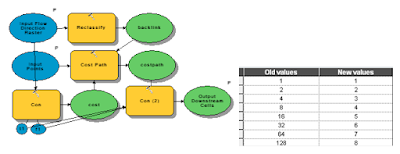
The picture below shows the guts of the model as you would view it from ArcGIS Model Builder.  The Trace Flow Downstream is a fairly simple tool.  Using the flow direction from the previous tool and the points this simple tool takes a flow direction raster and reclassifies it into a backlink raster and then traces the path using the cost path tool. The reclassification is shown above with flow direction values in the left column and backlink values in the right column.

The picture on the right shows the results of the Trace Downstream tool.  Input points are the light blue points and red cells represent grid cells located downstream from those points. This tool could be used for a number of hydrological applications. For example, we may be interested in tracing a pollutant downstream. We may also be interested in identifying concentrated flow paths from overland flow. Finally we might want to use a tool such as this one to identify locations for placing erosion or pollutant control measures in order to maximize efficacy while controlling costs. For example, it might be most effective to place two to three measures in areas where flow is concentrated rather than dozens along the perimeter of the inflow area.