Thursday, May 28, 2015

Updates to the Prepare Rasters for Maxent Tool - upscaling rasters

Maxent software (http://www.cs.princeton.edu/~schapire/maxent) is frequently used for presence-only species distribution modeling. Maxent requires, however, that input ASCII raster files be aligned with one another and have the same spatial extent. This tool pre-processes raster data in preparation for Maxent modeling to ensure that all rasters have the same extent, same cell size, and aren't missing data. You can download the tool HERE.

There is a new tool that can be used to upscale data. Upscaling is useful when simple resampling is insufficient. For example, if you have a 30 meter classified vegetation map simply using the majority resample to resample to 1000 meter cell size would be insufficient because it would just tell you about the majority vegetation type present. Better would be to count the number of pixels of the vegetation type of interest within the 1000 meter cells and calculate the proportion of that vegetation type. This also solves the problem of having to treat the data as categorical in Maxent. Vegetation type would have to be treated as a categorical variable whereas proportion of X vegetation type is a continuous variable.

This example illustrates the idea of upscaling.


In the image above we have a forest/non-forest GIS layer overlaid on a coarse-resolution grid. The need for the coarse resolution grid is due to uncertainty in the location of the occurrence points and the resolution of other datasets that will be used in Maxent (e.g. the MODIS satellite products have a cell size of 250 - 1000 meters depending upon the product). The image below shows tree cover at the 1000 meter scale derived from running the Upscale Rasters for Maxent Tool. An important pre-processing step is deciding which vegetation types should be included in the model and which should be omitted. Included vegetation types should be reclassified as 1 prior to running the tool and omitted vegetation types should be reclassified as 0.

Wednesday, May 20, 2015

New tool - Duration of event for rasters for ArcGIS 10.1

I've got a new tool out for ArcMap that shows the duration of events. Events should be coded 1 and non-events coded 0. Each raster represents a distinct point in time (in my case I did an annual time step). You can download this new tool HERE.


Here is an example of the tool in practice.  We've got a vegetation mortality event that can be mapped using satellite imagery. We've done this going back over twenty years at an annual time step. Each grid cell is coded either 1 or 0. The figure on the left shows the number of times that this event has occurred. We can see that in this area the event has occurred up to five times.

Now we run the duration tool to see if the event tends be in the same place in consecutive years.The figure below left shows that only very rarely do we see three consecutive years as having an event. Mostly we see two or even just a single consecutive events.

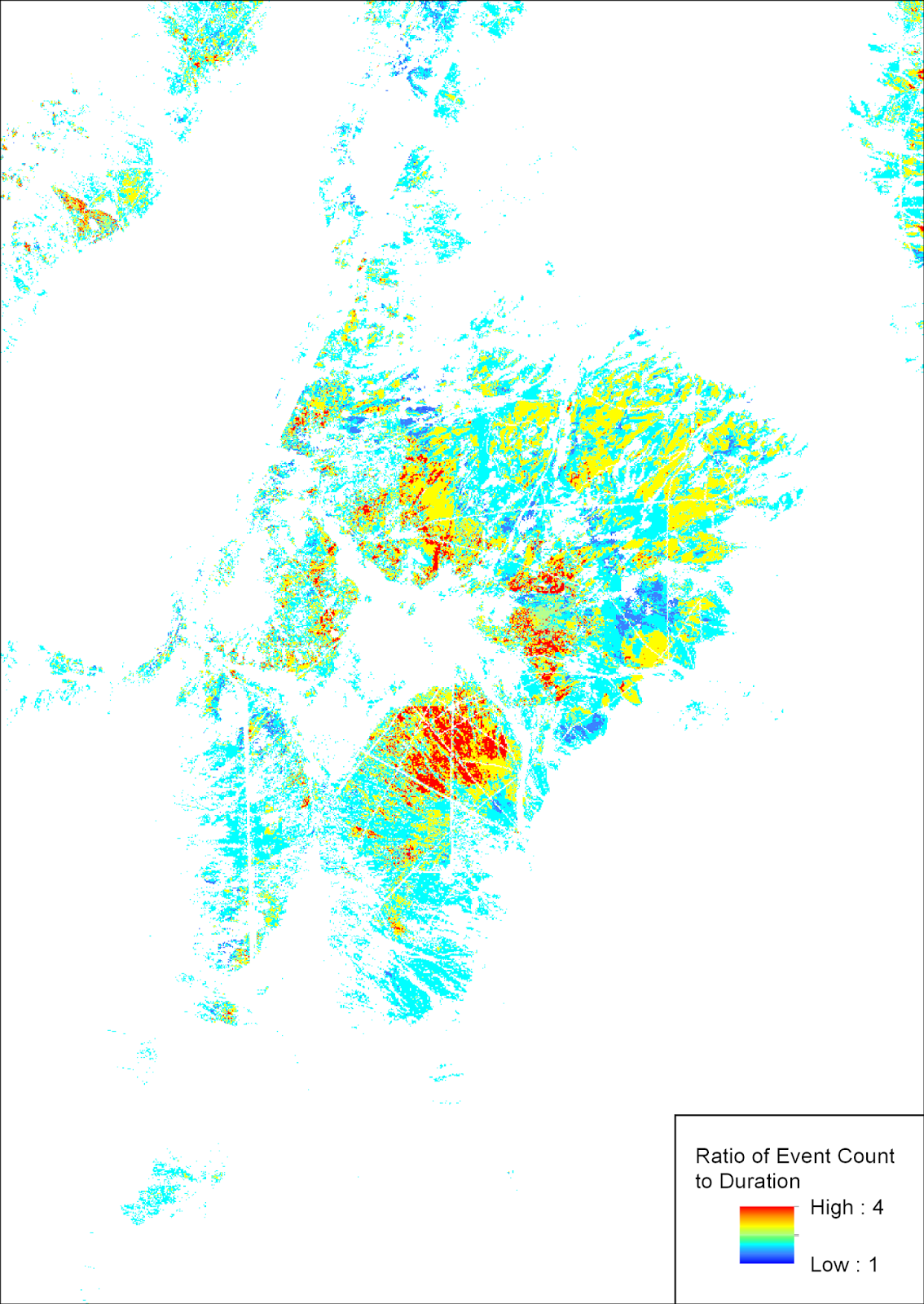
The figure below bottom shows the ratio of the count of events to the duration of events. The values range from 1 to 4 indicating that events have re-occurred in many of these areas up to four times.


Friday, May 15, 2015

Esri removes the geoprocessing script gallery causing mayhem

Earlier this month I discovered that Esri no longer provides a link to their geoprocessing gallery.  This is disappointing to me since every time they move or discontinue something part of the user base is lost or left confused.  The following tools that I've built are affected by this change:

Topography Toolbox
Polygons to Centerlines
PRISM Data Helper
Pixel Corner Coordinates
Extract Rasters
Add Source and Batch Join Tables
Treeline Migration
DD to DMS

Fortunately, I've ported some of the tools over to arcgis.com.  The following tools have made the move thus far and I will be moving more soon.

Topography Toolbox
Polygons to Centerline

The following tools have been combined into the Topography Toolbox:

Riparian  Topography Toolbox
PRISM Data Helper

Tuesday, April 21, 2015

Better flow accumulation with positive and negative weights

Most GIS users are probably familiar with calculating flow accumulation and many are probably also familiar with weighted flow accumulation. ArcMap, however, will not allow negative weights and this can be a severe limitation in some cases. Fortunately,  back in 2008 Bill Huber provided us with a simple yet elegant solution to this problem.  However, I've noticed that this problem tends to resurface from time to time on the forums. A while back I put together a geoprocessing model  to deal with this problem using Bill's solution which is available for download.

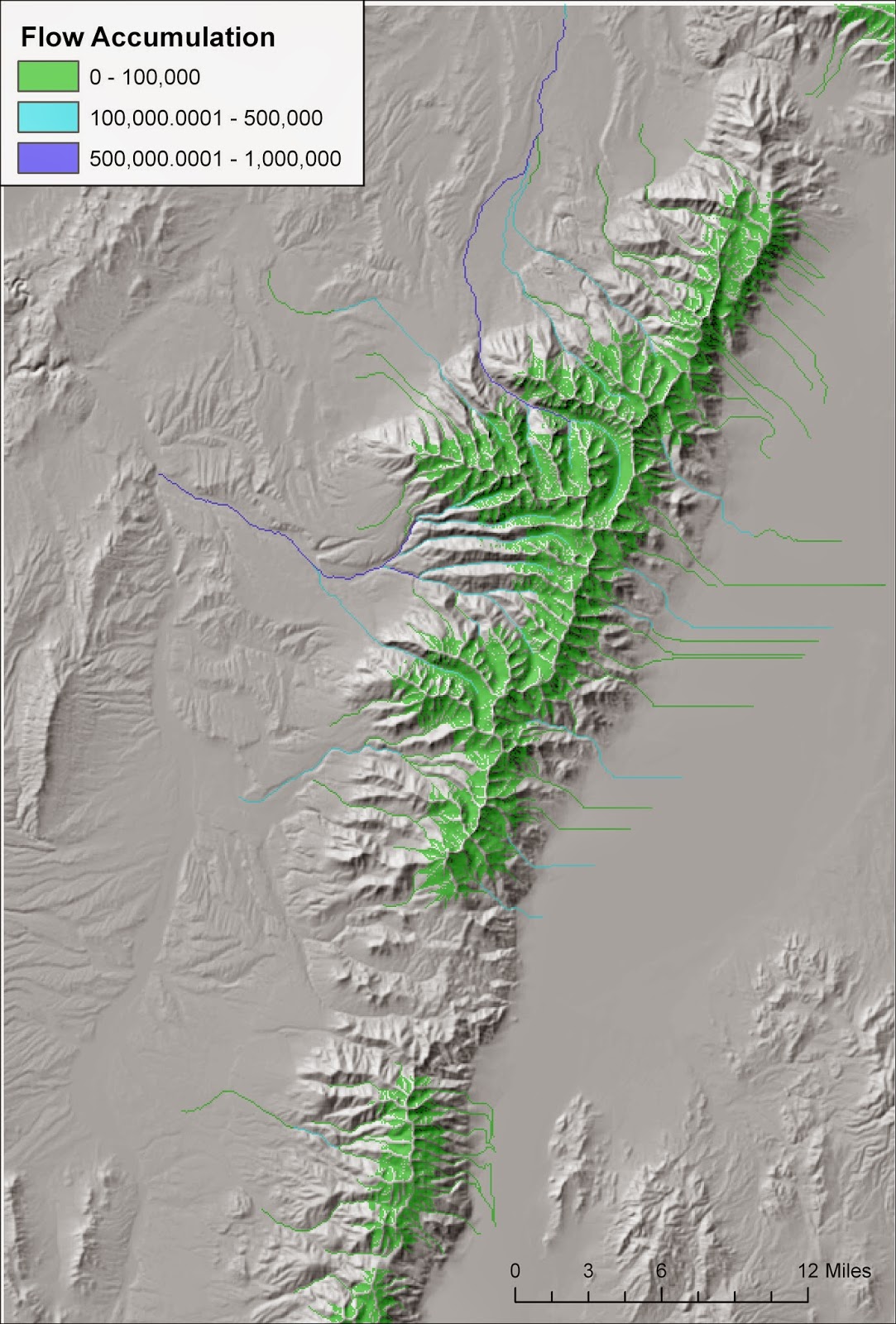
The map on the right illustrates how a tool, such as this one, might be used. I first performed the two operations that precede flow accumulation: filling sinks and calculating flow direction. In this case I used a 30 meter USGS NED DEM. Then using my new tool I used a weight raster that consisted of rain + snowmelt minus evapotranspiration. In areas with positive values water is being released into the environment. In contrast, negative values highlight areas where evaporation is  removing water from streams. In a typical flow accumulation operation flow accumulation only increases as one moves downstream. However, in arid environments we know that isn't true. Flows increase generally as one moves downstream due to multiple streams flowing into one another, but at some point flows begin to decrease because evaporation exceeds water inputs. The map above illustrates this in several places. Several streams flow out of the Ruby Mountains but many end when they flow into areas of high evaporation. Others flow off the map but  are diminished before they leave the map.

This example also demonstrates that streams could be treated as dynamic entities dependent upon both precipitation and temperature. The data for the map above was derived using the Climatic Water Deficit Toolbox for the month of June. Later in the summer months flows may be diminished and connectivity for fish species may be impacted. In contrast, during the wetter months streams may become more connected. Finally, I should note that for the one instance where I compared a result like this to an actual hydrograph it didn't stack up so well. The streams went dry mid-summer in the flow accumulation model yet actual hydrograph data showed greatly diminished but still existent flows due inputs from groundwater. Nonetheless, these sorts of dynamic flow accumulation models are likely to be better than standard static flow accumulation models.


Wednesday, April 1, 2015

On why ArcMap gets quantiles wrong

Recently, I discovered that ArcMap gets quantiles wrong - really wrong.  I'm sure that there are many instances where ArcMap gets quantiles right, but recently it seemed like nearly every one that I've encountered had it wrong.  I think that it is important that every Esri user be aware of this limitation and the potential remedy.

When I started digging in deeper I discovered that ArcMap seems to get it wrong when there are highly skewed distributions, which leaves me wondering if Esri is aware that their quantiles algorithm just isn't cutting it for most scientific applications in which skewed data is common, if not the norm.

Below I show an example from a colleague of mine's.
The image to the right is the result of four Brownian Bridge movement models for four individual deer combined into one average. Purple indicates high values - areas where the biologists are nearly 100% that the deer traveled through. Yellow shows less probably paths.

When I did a quantiles classification after removing zero and isolated the top 10% of values I noticed that there were 2676 cells out of 474,135 total.  That is less than 1%, not even close to 10%.

The remedy for this situation is to take the raster data to vector.  You can use either points or polygons.  I tend to use polygons.  The workflow goes something like this:

1.  Remove zero values using SetNull
2.  Multiply by 10,000,000
3.  Convert to integer
4.  Convert from raster to polygon or point
5.  Use the sort tool to sort descending by the grid_code
6.  Calculate the cumulative values using the following python cod block in the field calculator:
total = 0
def cumsum(inc):
 global total
 total+=inc
 return total
7.  Select the top 10%, 25%, 50%, 90%, etc.

The resulting map (left) illustrates the difference. Black areas show the total movement paths, red is the top 10% using the vector-based approach, and yellow (barely visible) is ArcMaps quantiles classification.  The new cell count is  47,413 which is the top 9.99% of cells.  This is pretty good in my opinion!

The lesson here is beware of quantiles when your data is highly skewed and always double check your work.  Thanks Marcus Blum for providing the data for this example.